P6 Professional
Projects
Duration Percent Complete at WBS and Project Levels
The following fields are newly added to the Project and WBS views:
- Duration % Complete: Calculated as the difference between the original duration and remaining duration expressed as a percentage of the original duration.
- Planned Duration: Calculated as the difference between the latest planned finish and the earliest planned start using the global default calendar. At project level, planned duration is aggregated from the child WBS nodes of the project. At the WBS level, planned duration is aggregated from the child activities.
- Planned Start: The earliest planned start of all the activities in the project or WBS.
- Planned Finish: The latest planned finish of all the activities in the project or WBS.
Milestone Relationships Default to Finish-to-Start
When you assign relationships to milestones in P6 Professional, the default relationship type is finish-to-start. This change improves consistency across Primavera applications and makes it easier for you to ensure your schedules meet Defense Contract Management Agency guidelines, which state that at least 90% of relationships should be finish-to-start.
Improved Filtering of Projects
You can now filter by the following additional fields in the Projects view:
- Added By
- Date Added
- EPS ID
- EPS Name
You can also add the Added By and Date Added columns to the project grid and group and sort by them in the Projects view.
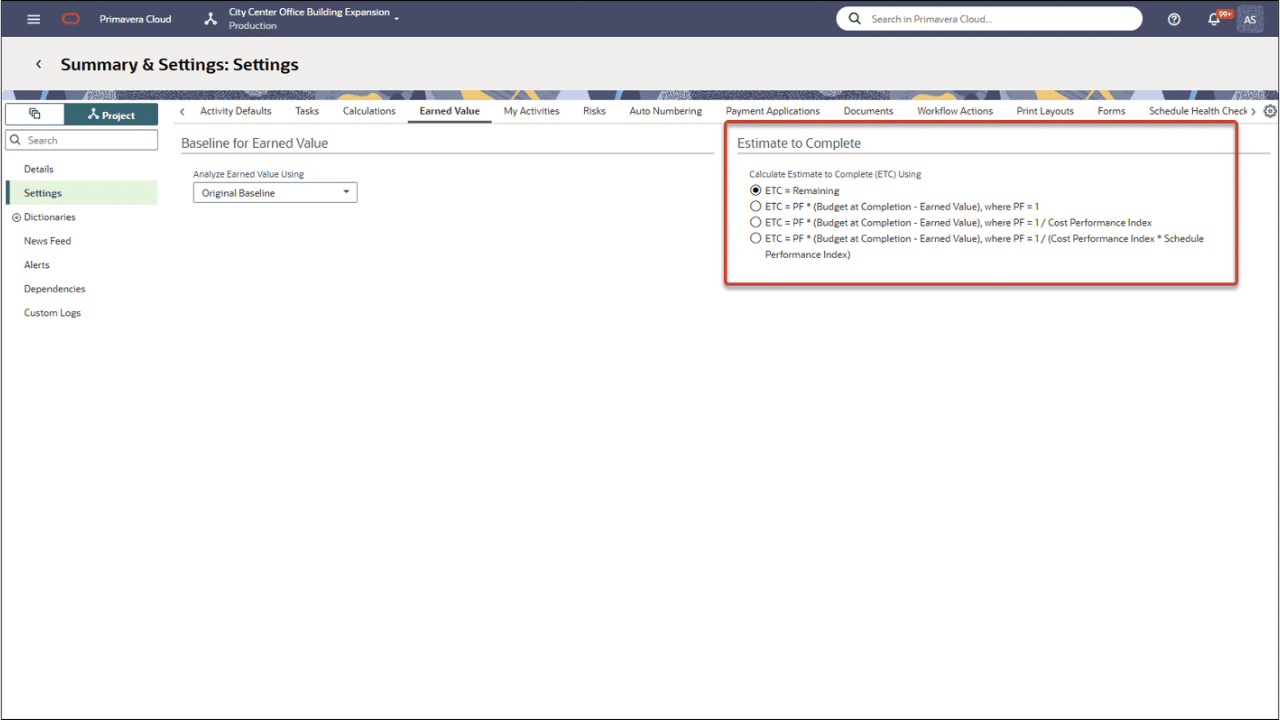
Estimate Time to Complete at WBS and Project Levels
Estimate time to complete has been added as a column available in the Project and WBS views. You can also use these fields to create filters, and to group and sort views.
Improved Visibility Into Whether Each Activity Exists in the Baseline
New fields have been added to the Activities view to help you to know whether each activity is represented in the baseline.
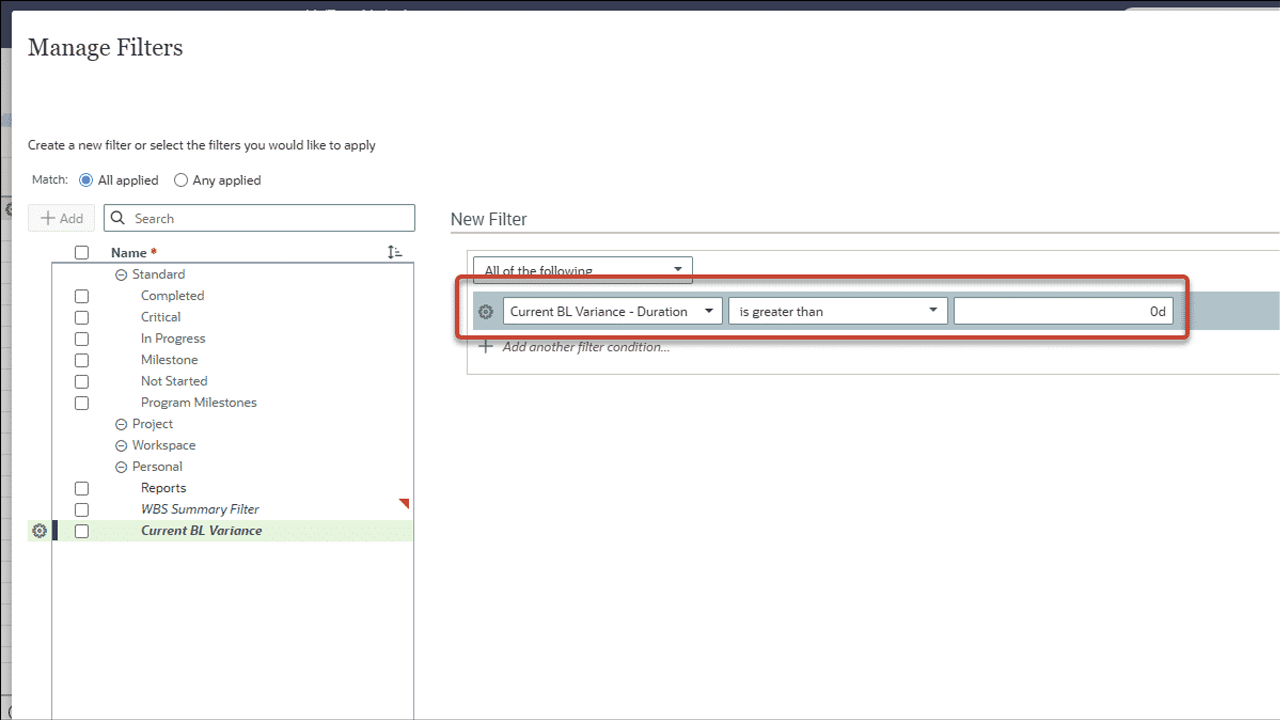
The BL Project Match, BL1 Match, BL2 Match, and BL3 Match fields are available in the new Baseline category in the columns list and indicate whether the activity is represented in the Project Baseline, user's Primary Baseline, user's Secondary Baseline, or user's Tertiary Baseline respectively.
You can use these new fields for grouping, sorting, and filtering activities in P6 Professional, and you can add them to reports. In P6 Visualizer, you can group, sort, and filter by these new fields in Gantt and Time Scaled Logic Diagram (TSLD) reports, and can add them as columns to the grid.
P6 Professional determines whether an activity in the respective baseline is a match on the basis of either Activity ID or Globally Unique Identified (GUID) depending on the PM.ini setting "MATCHBASETASKBYGUID".
Reports
Dangling Start and Dangling Finish Checks Added to Check Schedule Report
Two new checks in the Check Schedule report asses the schedule for activities with start dates that are not driven by predecessors (Dangling Start) and finish dates that do not drive successors (Dangling Finish). These two options are also represented on the and Check Schedule toolbar.
The settings related to the check schedule functionality have also been grouped into tabs by check type. The new tabs are:
- Relationships and Assignments
- Dates and Durations
- Constraints
Administration
Improved Visibility into Calendar Usage Across Projects
The Calendar Used By dialog box now provides a more complete view of where a calendar is applied. In addition to listing projects with activities that use the selected calendar, it now also includes projects where the calendar is set as the project’s default—even if no activities in the project reference it.
When you drill down further into the calendar usage, the lists includes both the activities in the project that use the calendar and the project itself if the selected calendar is configured as the project default. This enhancement helps teams quickly validate calendar configuration, improve governance, and reduce time spent troubleshooting scheduling settings.
Calendars
Copy Calendars from Open Projects
Create a global, resource, or project calendar by copying a project calendar from an open project. Reuse project-specific working time, exceptions, and time periods without recreating the calendar manually.
Activities
Find Activities with External Relationships
Use the default activity filter to quickly find activities with relationships to activities in other projects. The Has External Relationships field is also available for columns, grouping, sorting, filtering, Visualizer, and reports, making it easier to work with cross-project relationships.
Explain Why Activity Constraints Exist
Add descriptions to primary and secondary activity constraints to record why a constraint was applied. You can also see who last changed the description and when the change was made.
Administration
Control Excel Template Editing Separately
Control who can add, modify, duplicate, or remove Microsoft Excel templates with a privilege separate from XML template access. Users without the Add/Edit/Delete Microsoft Excel Templates privilege can still select existing Excel templates for import or export without modifying them.
Team Member
Status Update Review and Approval in P6 Professional
When connected to an EPPM database, review team member status updates directly in P6 Professional. From the Status Updates dialog box, approve, reject, hold, remove hold from, or override submitted updates without switching applications.
WBS/EPS
Import WBS Structures with Excel
Export and import WBS hierarchy information in XLSX files using the WBS subject area to create or update WBS nodes in Excel. Existing WBS security privileges continue to control which WBS and WBS cost fields you can update.
P6 Web :
Navigation
P6 Gets a New Interface
P6 now leverages the simpler and more efficient navigation aligned with the Redwood design concept. This commitment to modernizing Primavera products provides you with a more consistent user experience across products.
The new Navigation menu enables you to switch between different pages of the application swiftly, with fewer clicks and is not hampered by pages that might require a large number of projects or activities to be loaded before you can switch pages. The navigation panel collapses out of sight when you're not using it, so there's more space on screen for what matters; your data. The Context selector allows you to switch to recently used portfolios and projects P6 more easily.
While the way you navigate to each page is now simpler and faster with the new Redwood-aligned menu, the pages themselves—including their familiar look, layout, and functionality—remain the same, so you can keep working confidently while benefiting from a more efficient route to everything you use.
Click here to watch a video covering the new user experience.
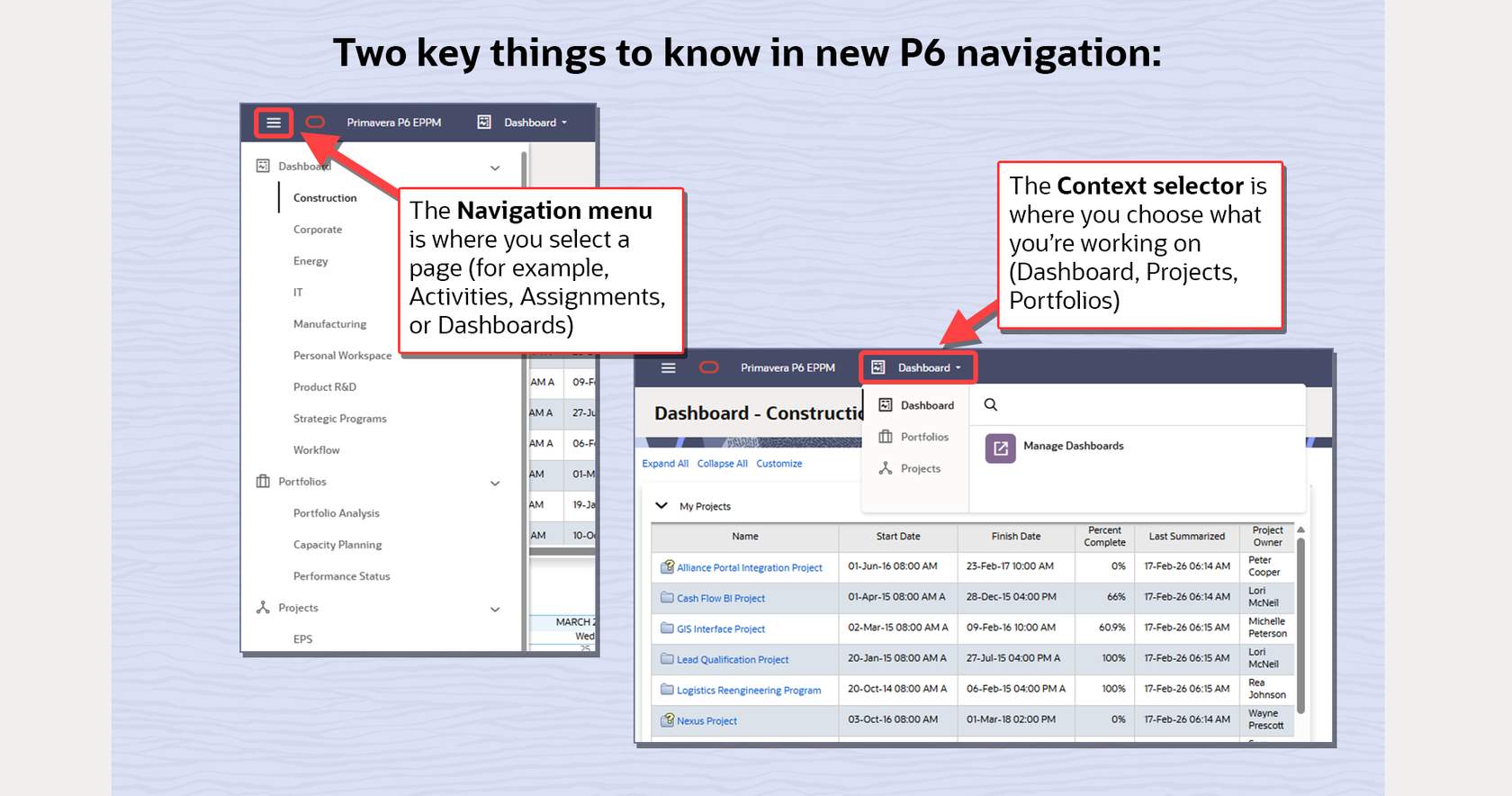
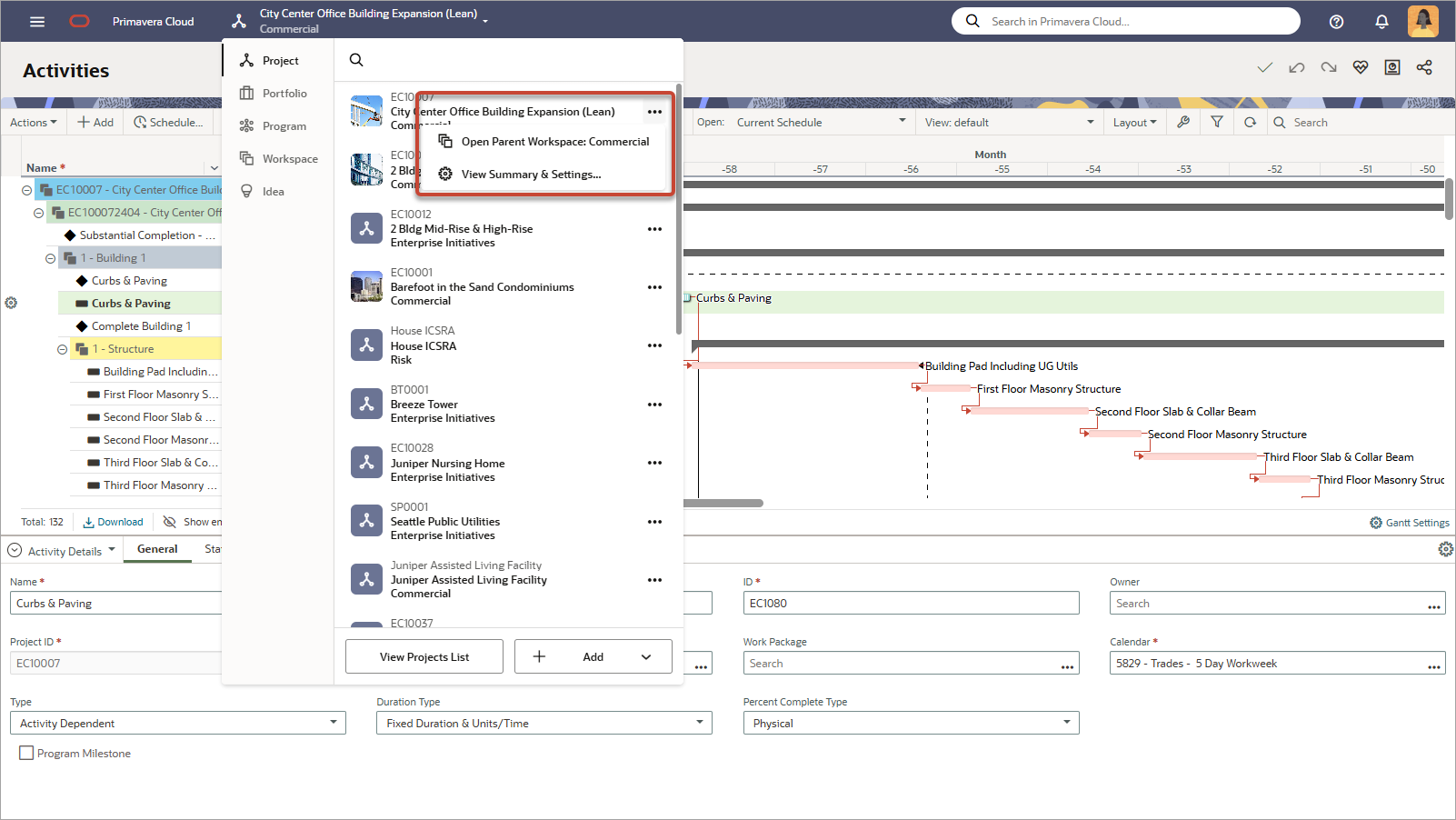
The Navigation menu and Context selector allow you to easily navigate through P6.
Portfolios
Improved Dynamic Project Filtering Using Portfolio Filtering
When you create a filtered portfolio, you can now filter by EPS ID and EPS Name using additional operators: starts with, ends with, contains, and does not contain. When you use these operators, the value is not case sensitive. For example, the following filter criteria will be treated identically:
- Project ID contains "Nano"
- Project ID contains "NANO"
- Project ID contains "nano"
- Project ID contains "nANO"
To improve clarity, the EPS field in the field list has been renamed EPS ID.
Projects
Estimate Time to Complete at WBS and Project Levels
Estimate Time to Complete and Estimate Time to Complete - Labor Units have been added as columns in:
- The grid view of the Activities page (for Project and WBS rows)
- The grid view of the EPS page (for EPS and Project rows)
They are also available for grouping, sorting, bar labels, and activity network box labels.
Resources
More Efficient Resource and Role Administration
When you are assigning resources to roles, or roles to resources, you can select multiple items in the assign dialog box. When you click Assign, all the items that are selected are assigned to the resource or role. You can use Shift+click to select a contiguous set of items, or Ctrl+click to select a non-contiguous set.
This change increases efficiency for resource managers during bulk assignments. It also reduces the number of steps required to assign roles to resources and resources to roles, which lowers the risk of errors. P6 behavior is now aligned with P6 Professional behavior to provide a more consistent experience for resource managers using both products.
Approvals
Viewing Attachments from Status Updates
You can now view documents and attachments to status updates in P6. On a status update card, click or tap the Documents (paperclip) icon, to open a dialog box from which you can view the attachments. If there is a content repository configured, as well as seeing documents attached to the status update, you can see all documents available in the content repository for the associated project.
Reports
Improved User Reports
Several of the sample reports now include a list of the modules that a user has access to. This improvement will help you to manage user licenses more effectively, identify users who have been given access to modules they don't need, and comply with licensing requirements.
The following reports now include the "Module Access" column:
- Never Logged Users
- User Inactivity Report
- User Inactivity Report - Active Users Only
- Users
- Users - Active Users Only
Administration
Navigate Enterprise Data Pages More Efficiently
Expand or Collapse items have been added to the Row Actions (context) menu on Enterprise Data pages for hierarchical data types. Using these options you can expand or collapse the entirety of your selected branch of a hierarchical structure, instead of having to expand or collapse each sub-branch individually. This improvement helps you to navigate to the data you need more efficiently.
Expand and Collapse items have been added to Row Actions in the following Enterprise Data pages:
- Projects Section: Funding Sources, Project Codes
- Activities Section: All Activity Codes pages, Cost Accounts
- Resources Section: Assignment Codes, Resource Codes, Role Codes
- Risks Section: Risk Categories
The Issue Codes page does not have these new Row Actions menu items because issue codes are not truly hierarchical, in that issue codes cannot be nested below other issue codes.
As is already the case elsewhere in P6, when you click the Download link below the grid, the resulting .XLSX file reflects the current grid view, including the expanded and collapsed state of the hierarchy that you have configured in the view
Retain Notes When Deleting Notebook Topics
Append descriptions from a single notebook topic to a replacement topic, or combine descriptions from multiple notebook topics into one replacement topic. This helps you clean up redundant notebook topics while retaining important notes across EPS, project, WBS, and activity notebooks. You can also delete notebook topics without retaining their contents.
Open Approved File Links
Configure approved file:// links that P6 and P6 Team Member Web users can open directly from supported text fields. Unapproved links are copied instead of opened.
Select Baselines Consistently for Services
Control baseline selection for scheduled Publish and Export Primavera XML services regardless of whether you select projects through projects, EPS nodes, portfolios, or project code values. Choose whether to publish or export the project baseline and assigned primary, secondary, and tertiary user baselines, and select or exclude specific baselines.
Review Security Profile Assignments with Ease
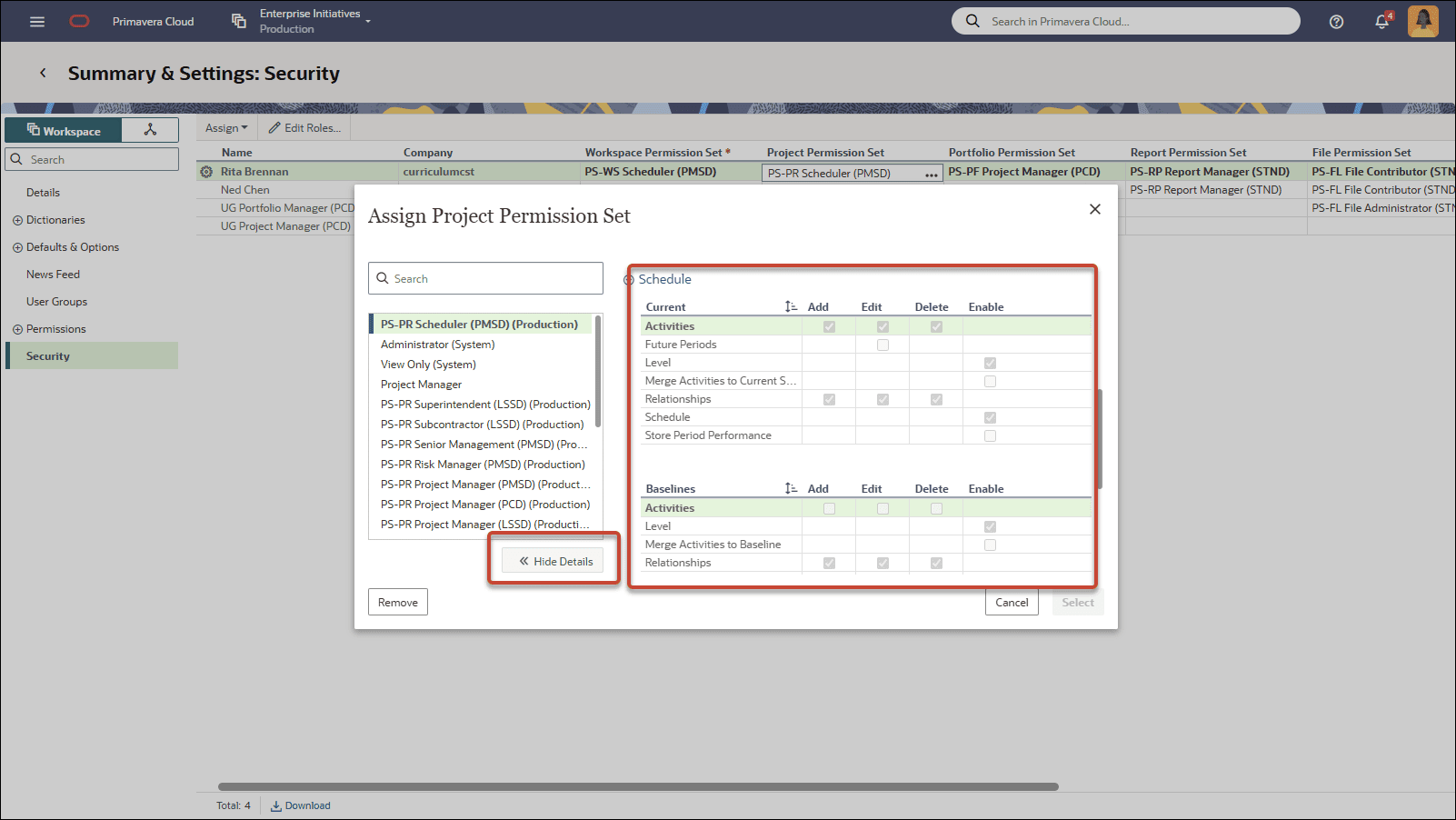
View and download the users assigned to global and project security profiles, including Admin Superuser, Project Superuser, and users with no global privileges. Verify profile assignments without opening each user's record.
Fill Down Project Access in User Administration
Use Fill Down in the Project Access detail tab of the Users page to apply project access settings more efficiently.
XML/XER
Import XER Projects with More Control
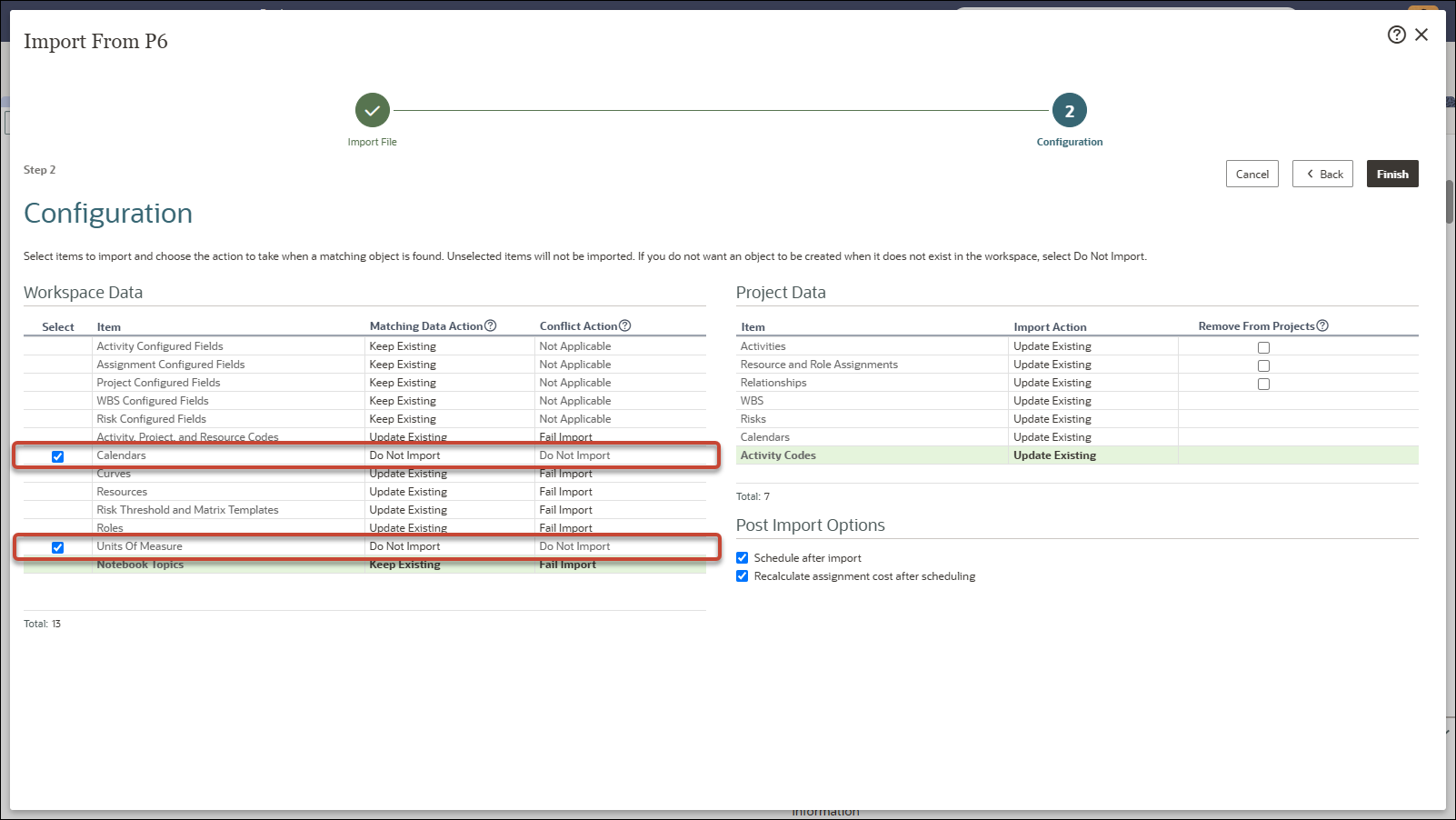
Import XER files by replacing an existing project, adding the incoming project to an existing project, or creating a new project. P6 identifies matching projects using Project ID and Object ID and can add the incoming WBS hierarchy and activities to an existing project. During updates, choose how to handle Project Funding Assignments and Project Record data, including notebooks, budget logs, spending plans, and project user-defined fields.
Manage Import Templates Independently from Importing
Create, edit, duplicate, and delete Primavera XER and XML import templates directly from the EPS page without starting an import.
Team Member
Notify Owners About Assignment Changes
Choose whether to email team members when they are added or removed as an activity owner. Enable activity-owner notifications in My Preferences and optionally confirm each notification before it is sent.
Team Members Can Assign Themselves as Activity Owners
Allow team members to assign eligible activities to themselves as activity owners and, when permitted, reassign activities to another eligible owner in Team Member Web. Project preferences control whether these capabilities are available.
Redwood Lite Updates for P6 Mobile and Team Member Web
P6 Mobile has a Redwood Lite theme for login, settings, My Activities, Timesheets, and Approvals. Team Member Web also includes Redwood Lite navigation.
Data: Summary and Published
Automate Published Data Cleanup
Delete published project and baseline data through integrations, from the Define Baselines dialog box, or for all open projects from the Activities page. You can also schedule deletion for selected projects based on individual project selection, EPS, assigned project codes, or portfolio inclusion.
Delete Summary Data on Demand
Delete summarized project data from the EPS or Activities page, or through a web service, helping you clear summary values for historical projects. Verify completion using the Contains Summary Data and Last Summarized fields on the EPS page.
WBS/EPS
Move Multiple WBS Nodes Faster
Use Fill Down in the Activities grid to set the Parent value for multiple WBS rows in one action. The Parent column displays the WBS ID and name to help you select the correct parent when WBS names are duplicated.
Baselines
Identify Activities Missing from Baselines
Add baseline match fields to activity views to see whether each activity exists in the assigned project baseline or the user's primary, secondary, or tertiary baselines. The BL Project Match, BL1 Match, BL2 Match, and BL3 Match fields are calculated automatically and are read only.