Configure Project Estimate to Complete Earned Value Settings
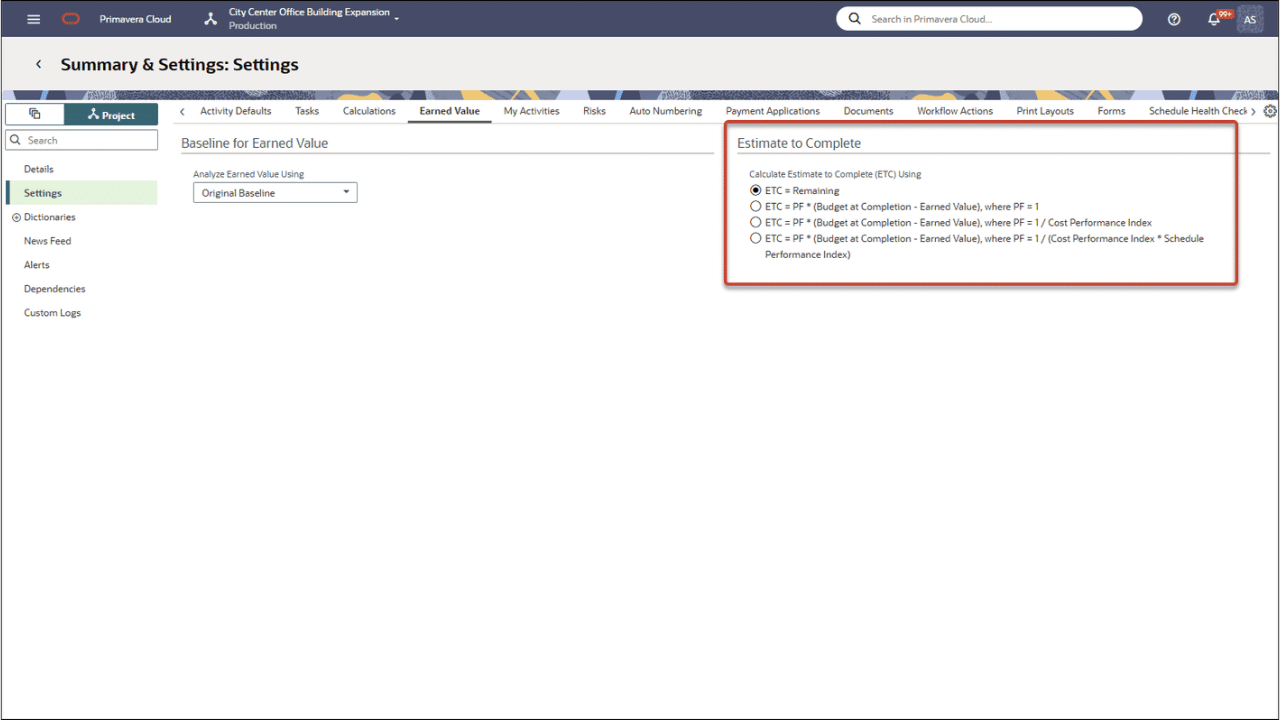
On the Project Settings page, the Earned Value tab now includes a setting for Estimate to Complete. Configure your projects to use remaining cost, or one of several methods using Budget at Completion and Earned Value metrics to calculate Estimate to Complete values.
Configure Default Schedule Health Check Settings at the Workspace Level
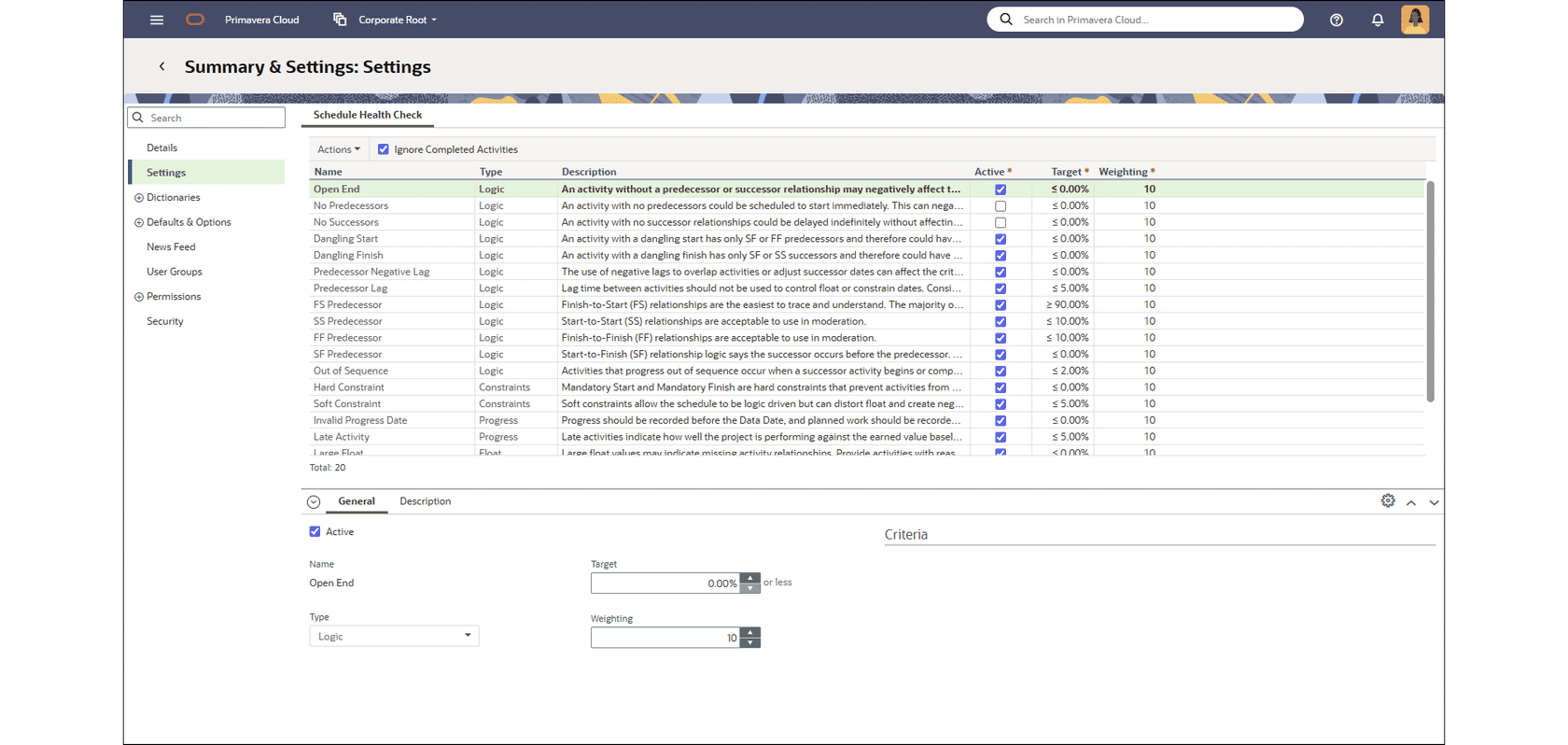
Use the Settings page in Workspace Summary & Settings to configure Schedule Health Check defaults for a workspace. New child workspaces and projects will inherit these defaults. Use the Actions menu to perform a one-time push down of settings to specified child workspaces or projects. Push settings from the root workspace to all other workspaces to standardize Schedule Health Check settings across existing workspaces and projects. Note that these are only the defaults and can be changed later for individual workspaces and projects.
Dashboards
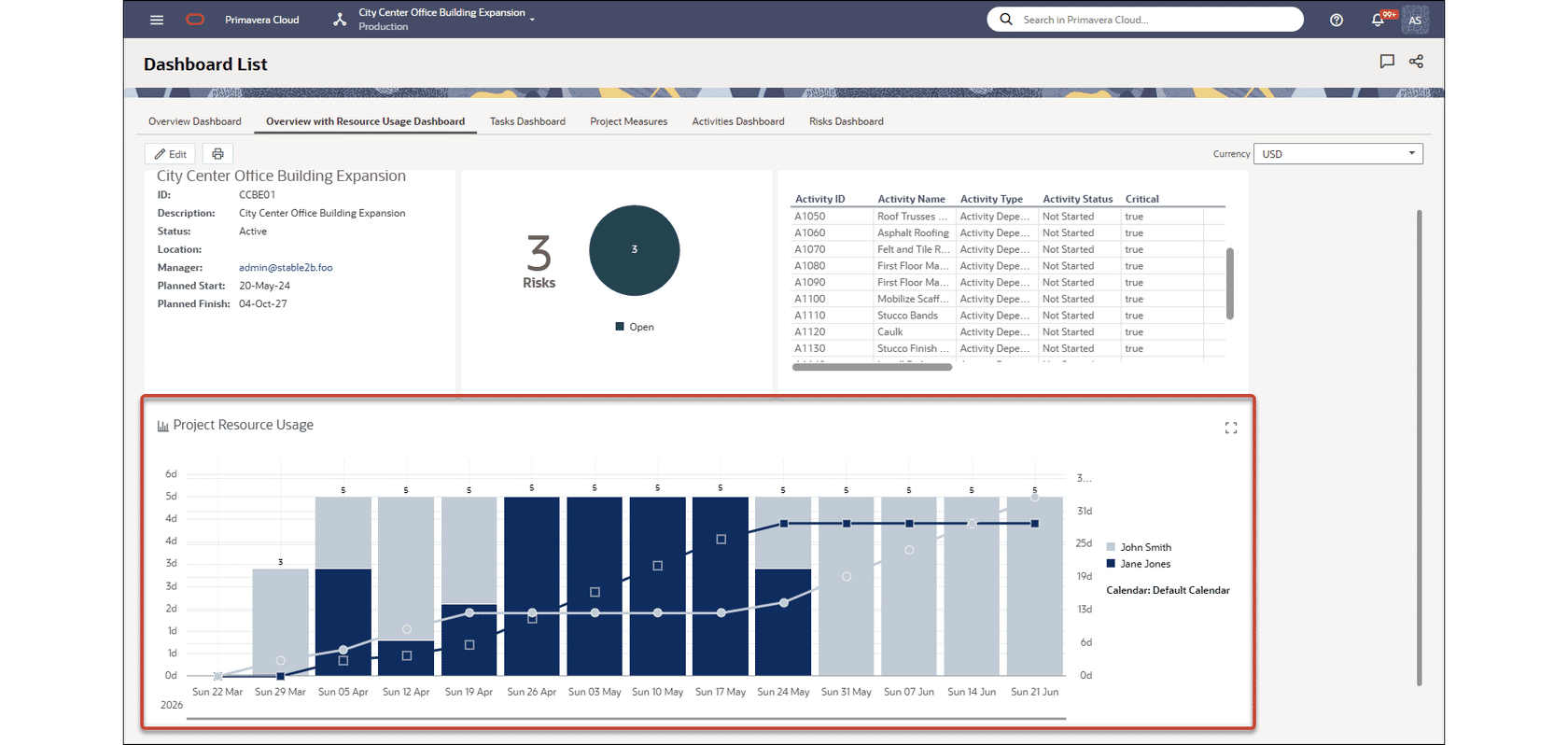
Display Resource Usage on Project Dashboards
Add the new Project Resource Usage tile to a project dashboard to display resource allocation data. Select resources, set the timescale, and configure the graph to display resource units or costs over time. Use additional graph options to display overallocation, max availability, cumulative curves, and a stacked histogram.
Workflows and Forms
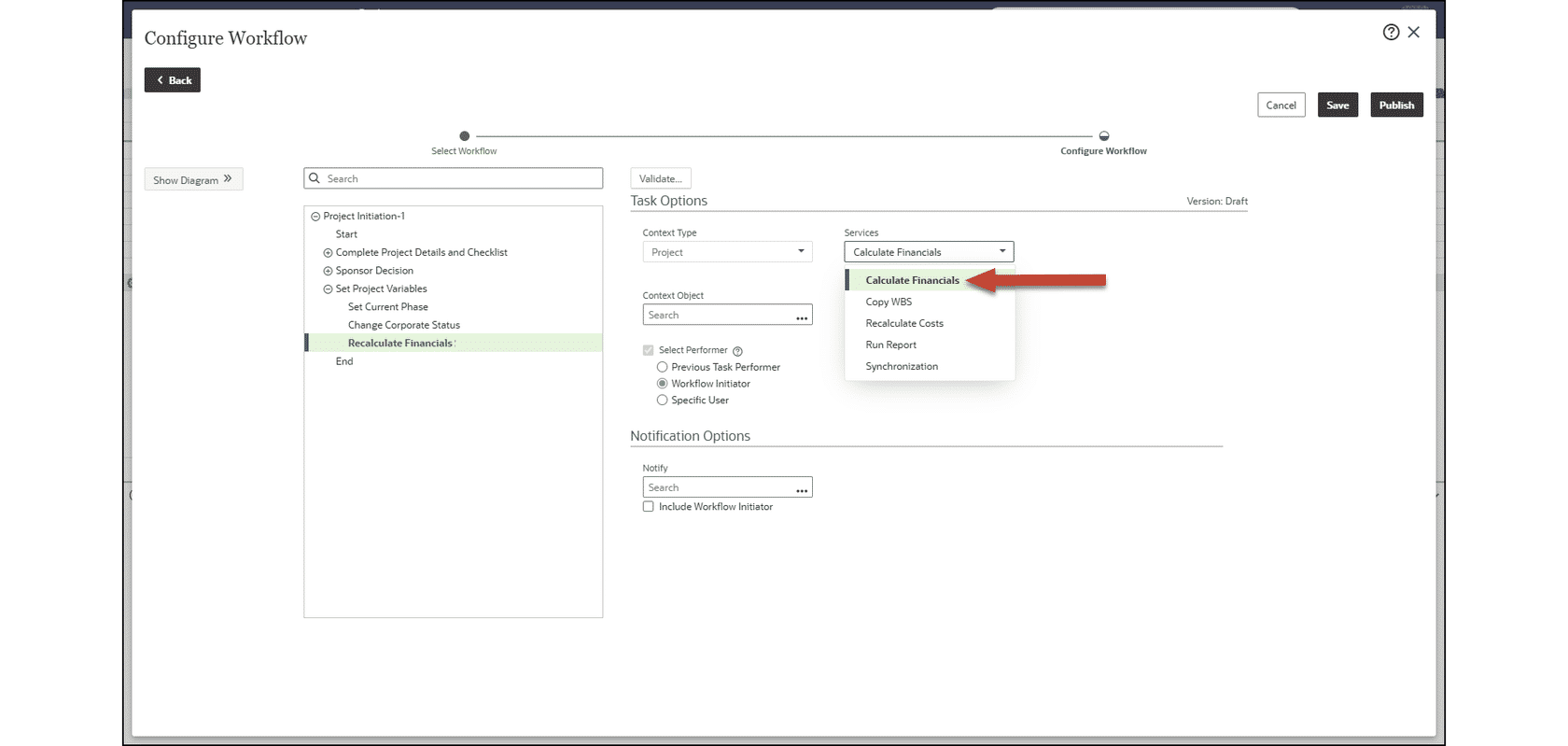
Calculate Project Financials as Part of a Workflow
Configure a project workflow to automatically calculate financial figures, such as net present value and internal rate of return, using its cashflow. For example, set a project proposal workflow so that financials are calculated after the proposal is approved. To configure this feature, first add a Services Task to the workflow design. Then in the workflow configuration, set the task to Calculate Financials.
Risk
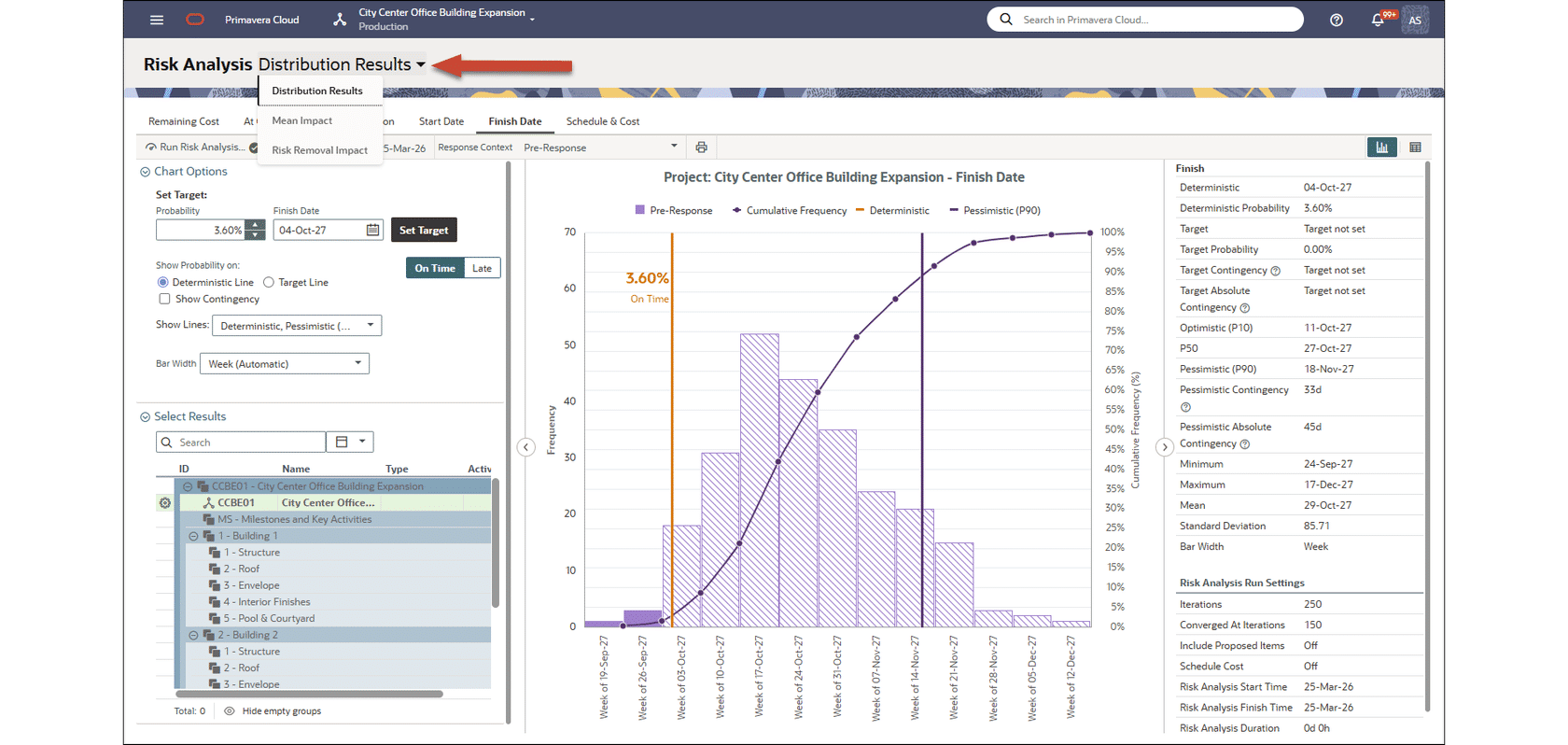
Risk Analysis Page Graphs Have Been Converted to Individual Pages
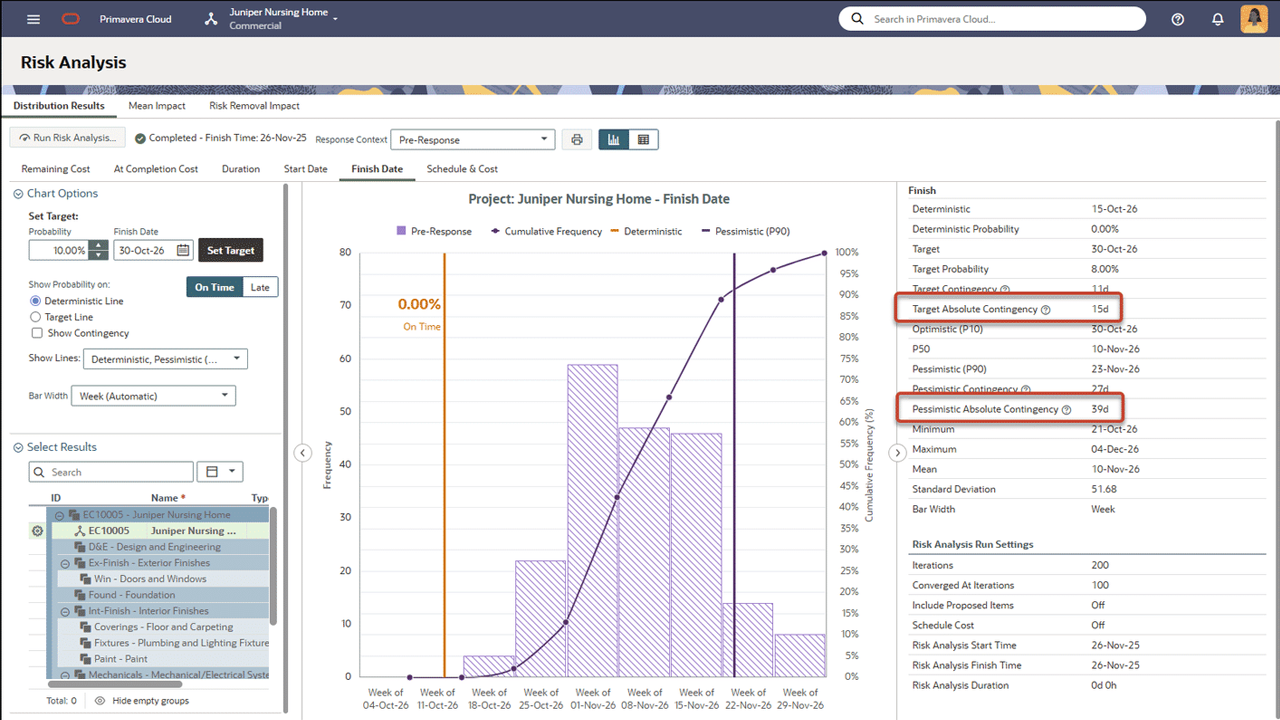
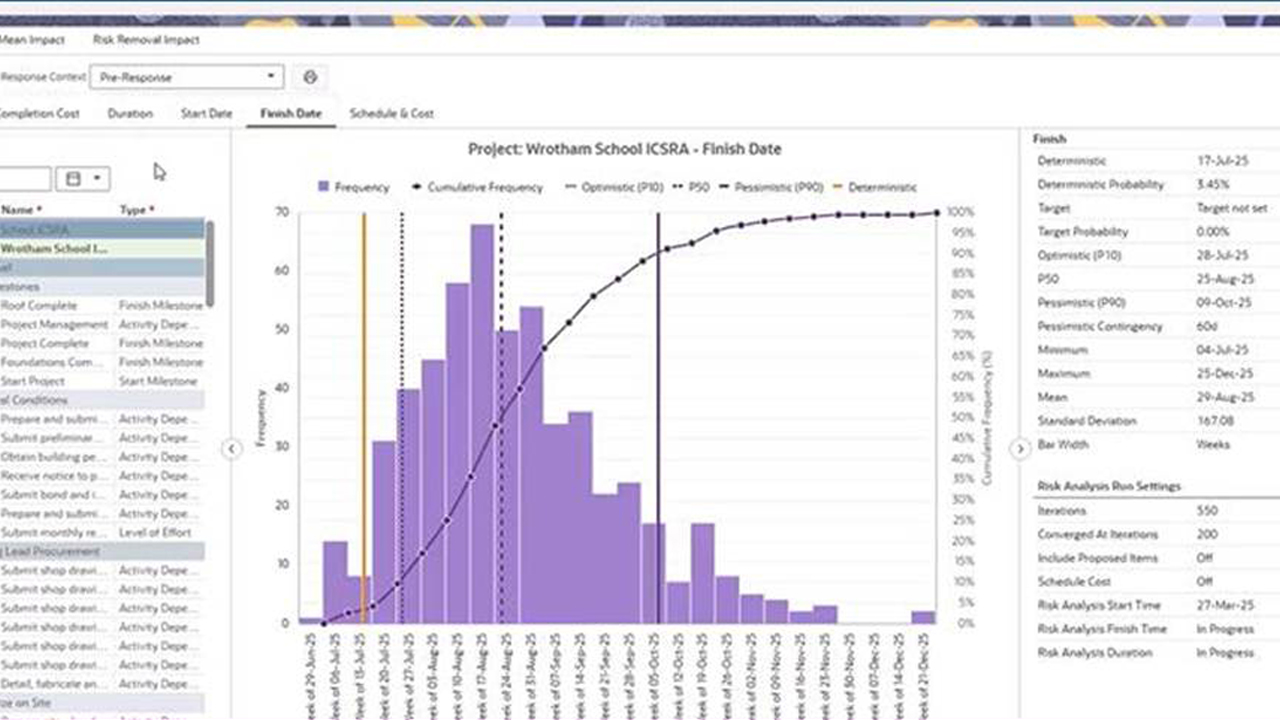
On the Risk Analysis page, the Distribution Results, Mean Impact, and Risk Removal Impact graphs, previously displayed as tabs, have been converted to individual pages. Use the drop-down in the upper left to select a graph to view. This change will allow the pages to support saved views in a future release.
Mobile
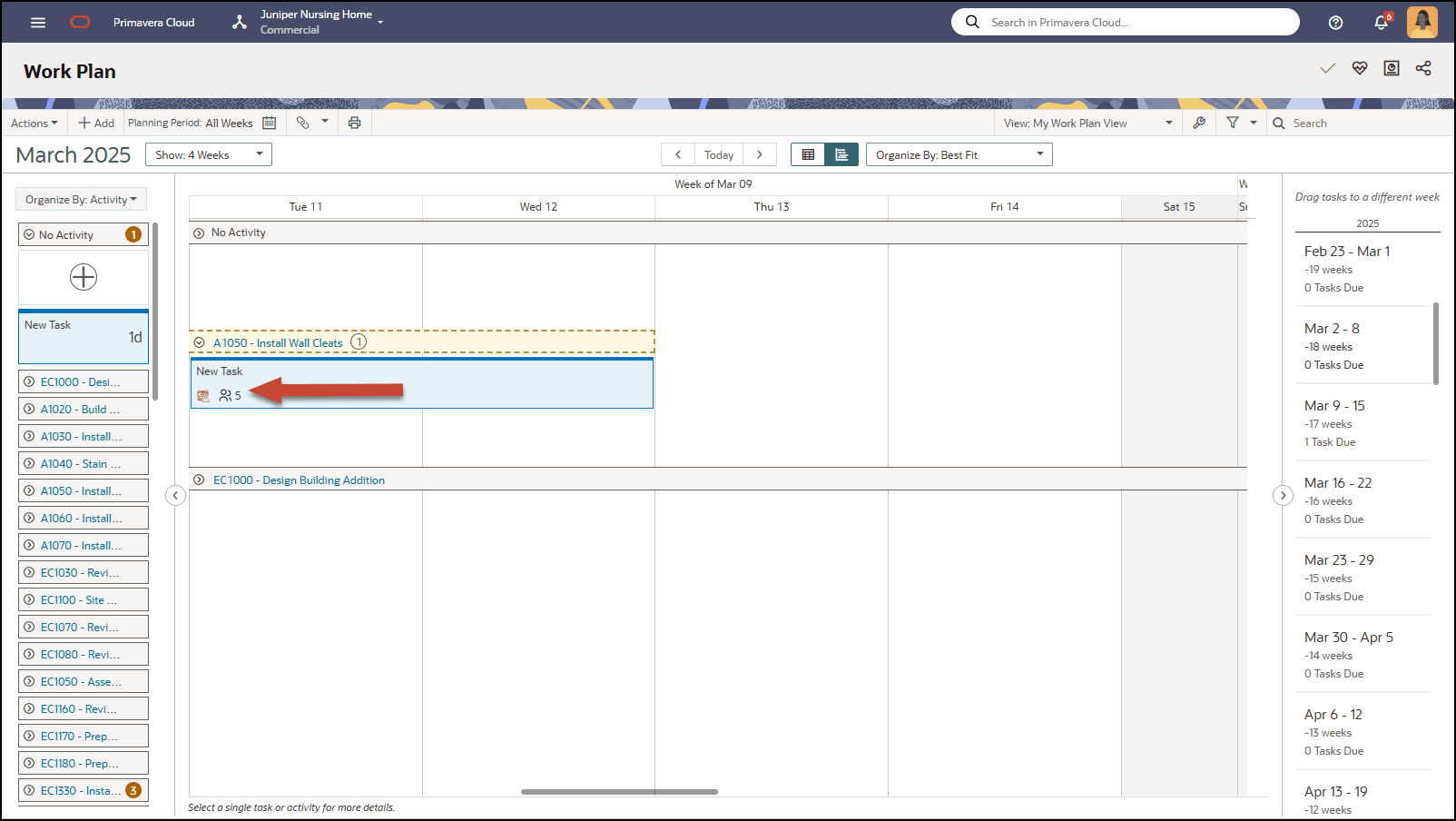
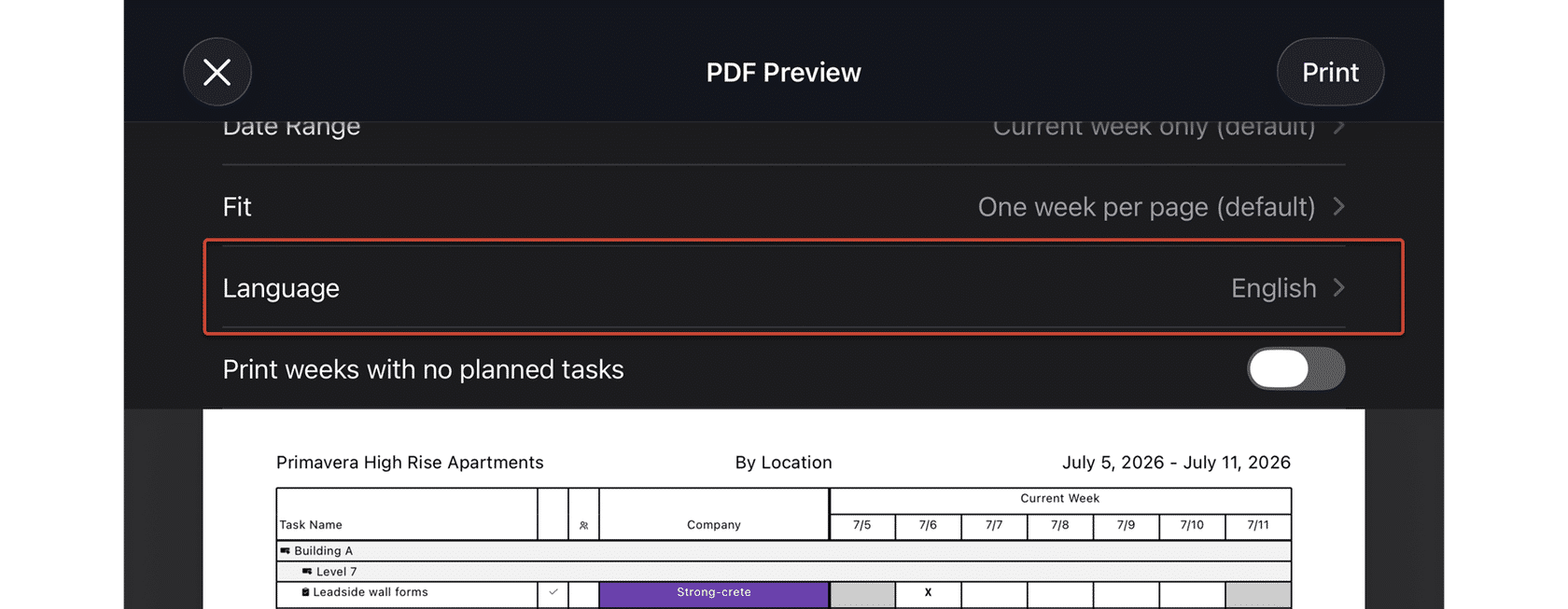
Additional Language Support Added when Printing the Work Plan Report
Print the Work Plan report in a different language than the one already configured for your device.
Additional Features
Please click on the item to learn more.
Edit Resource Assignment At Completion Cost and Units
You can now update At Completion Cost and Units on resource assignments to reflect the project's forecasted effort and cost. The Update units when costs change on resource assignments and Calculate units from costs settings must be enabled in the project settings. The activity Duration Type must also be set to Fixed Duration & Units/Time.
Use Actuals to Set Forecast Cash Flow Values to Zero
In the Cash Flow page settings, when the Link Forecast to Actuals option is selected, there is a new option to Overwrite Forecast when Actuals value is empty. Select this option to set a forecast value to zero when no actuals are expended during the time period. Configure this setting at the workspace level to standardize how forecast values are updated when actuals are missing or set to zero.
Filter on the Budget Planning Page for Projects With a Budget for the Current Planning Year
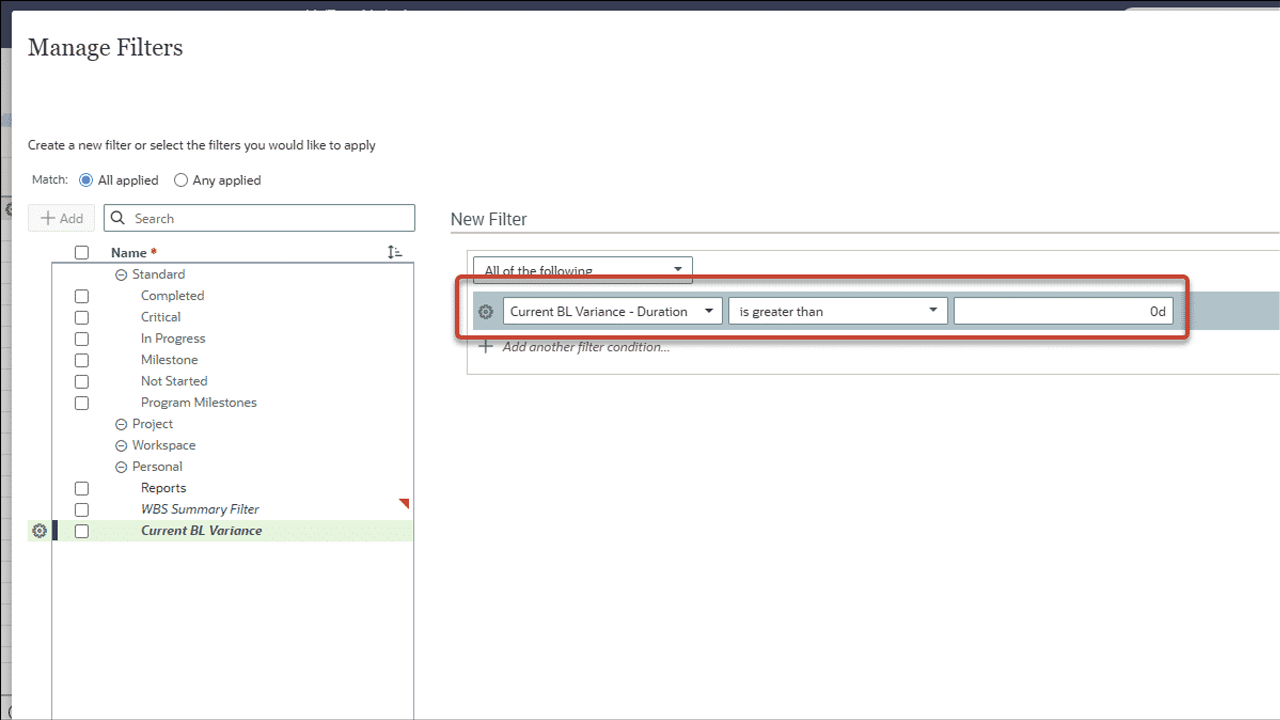
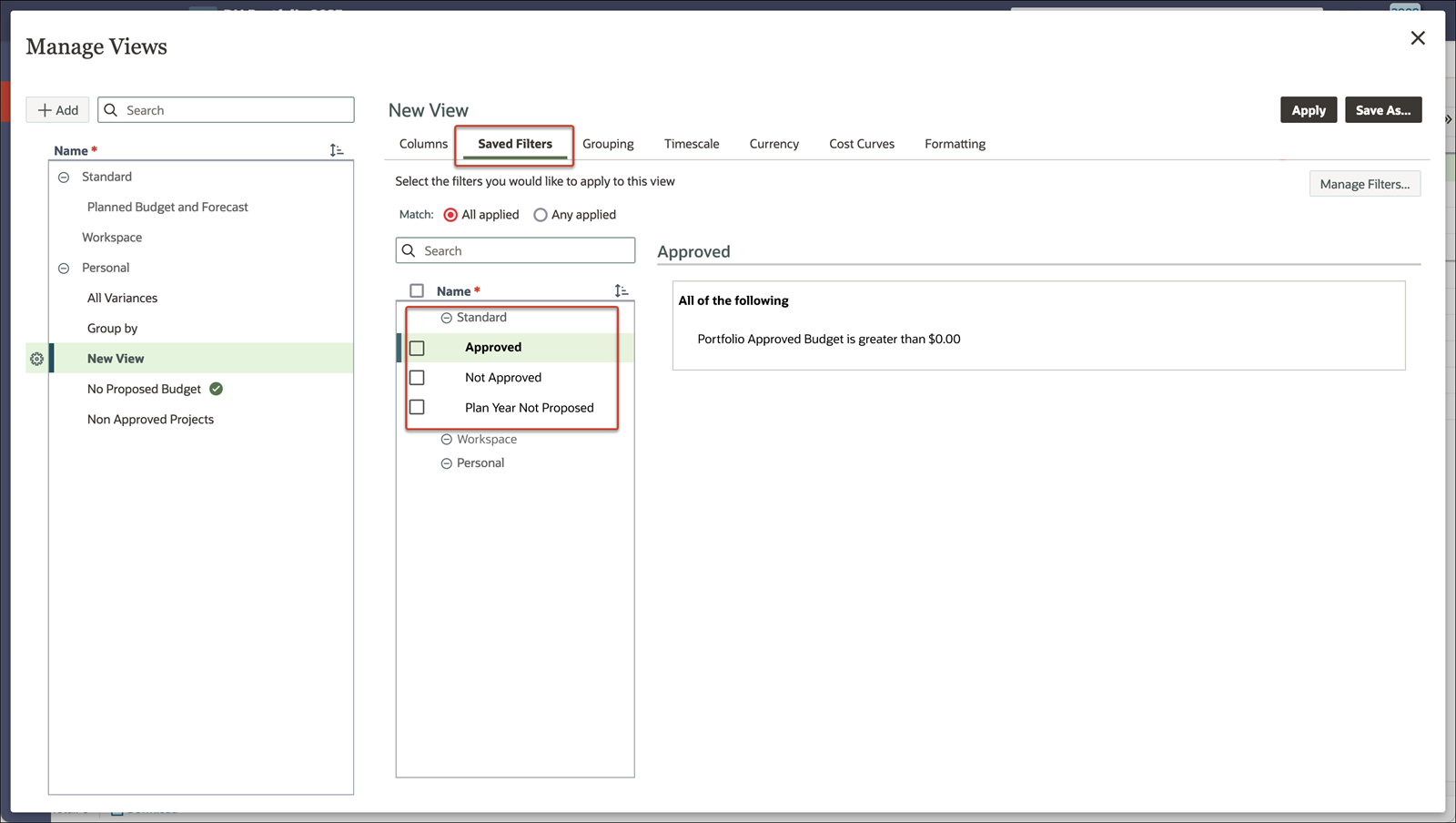
A standard filter has been added to all Budget Planning page views named Year 1 Proposed Budget. When you apply this filter, only projects with a proposed budget greater than zero for the current planning year are displayed.
A Portfolio License Is No Longer Required to Manage a Workspace Evaluation Matrix
Users without a Portfolio license can now execute the Delete, Disable, Remove, and Used By options for a workspace Evaluation Matrix and its categories. This enables a user perform actions such as removing a matrix in order to move a workspace.
Display the Full Path for Code IDs in Columns
In User Preferences, on the Settings tab, the Name and ID Display Format section has been updated to Display Format, with tabs for Codes, and Other Objects. On the Codes tab, choose to display ID only, ID - Name, or Path. When Path is selected, columns in Primavera Cloud will display code value IDs with their full hierarchical path, making it easier to distinguish between similar code values.
Location State/Province Field is Now a List Drop Down on Forms
When a workflow form uses the State/Province Location field, it will now appear as a drop-down list. This is consistent with how the State/Province field appears in the project details.
Copy and Paste WBS Nodes Between Program Projects
You can now open a Program and then use the Activities or WBS page in Schedule to copy a WBS node from one project and paste it into another.